Viết lời thoại cho slide
- 🇻🇳 Tiếng Việt
- 🇬🇧 English
- 🇰🇷 한국어
- 🇨🇳 中文
Tổng quan
Mỗi slide có một ô Ghi chú dành riêng để bạn viết lời thoại (speaker notes). Lời thoại không hiển thị trên slide khi trình chiếu, nhưng được dùng làm kịch bản khi bạn thuyết trình — và là nguồn nội dung để AI tạo video thuyết trình.
Điều kiện
- Đã đăng nhập tài khoản FireAnt.
- Đang mở một slide mà bạn có quyền chỉnh sửa, và slide đã có nội dung (văn bản, biểu đồ…) để AI tham chiếu khi sinh ghi chú.
- Yêu cầu tài khoản Premium.
Các bước
- Mở slide bạn muốn thêm lời thoại.
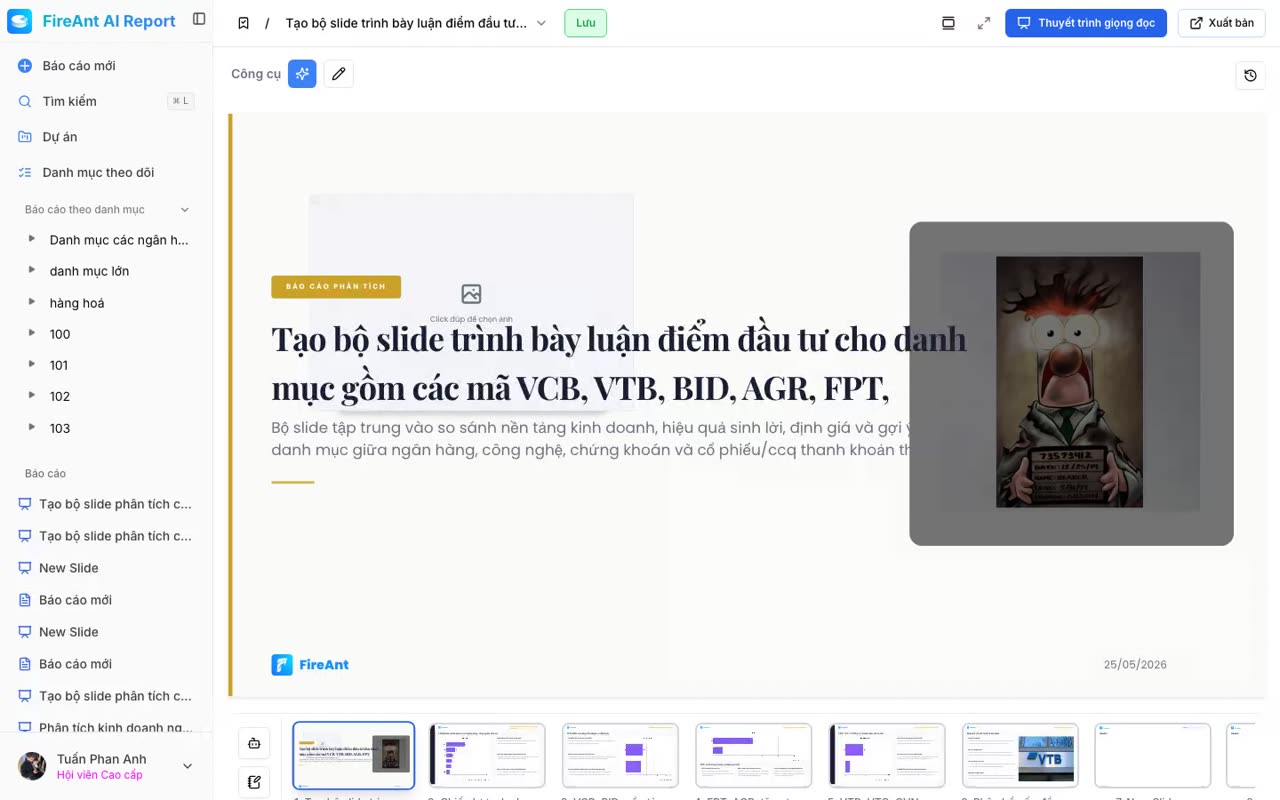
- Nhấn Ghi chú trên thanh công cụ — popover viết lời thoại cho slide hiện tại mở ra.
- Có hai cách viết:
- Tự gõ: nhập trực tiếp vào ô lời thoại. Số ký tự được đếm hiển thị dưới ô.
- Để AI tạo: nhấn Tạo ghi chú — AI sẽ phân tích nội dung slide và sinh lời thoại nháp; bạn có thể chỉnh sửa thêm.
- Nhấn Lưu để hoàn tất, hoặc Đóng để thoát.
Overview
Every slide has a dedicated Notes field where you can write speaker notes. The notes are not displayed on the slide when presenting, but they serve as your script when you present — and as the source content the AI uses to generate the narrated video.
Prerequisites
- Signed in to a FireAnt account.
- A slide you have edit permission on is open, and it has existing content (text, charts…) the AI can reference when generating notes.
- A Premium account is required.
Steps
- Open the slide where you want to add speaker notes.
- Click Notes in the toolbar — the speaker-notes popover for the current slide opens.
- There are two ways to write the notes:
- Type yourself: enter the text directly in the notes field. The character count appears below the field.
- Let AI generate: click Generate notes — AI analyzes the slide content and drafts the notes; you can then edit them.
- Click Save to finish, or Close to dismiss.
개요
모든 슬라이드에는 발표자 노트를 작성할 수 있는 전용 메모 필드가 있습니다. 노트는 발표할 때 슬라이드에 표시되지 않지만 발표 시 대본 역할을 하며, AI가 나레이션 비디오를 생성할 때 사용하는 콘텐츠 소스가 됩니다.
사전 조건
- FireAnt 계정으로 로그인되어 있어야 합니다.
- 편집 권한이 있는 슬라이드가 열려 있고, AI가 노트를 생성할 때 참조할 수 있는 기존 콘텐츠(텍스트, 차트 등)가 슬라이드에 있어야 합니다.
- 프리미엄 계정이 필요합니다.
단계
- 발표자 노트를 추가할 슬라이드를 엽니다.
- 도구 모음의 메모를 클릭합니다 — 현재 슬라이드의 발표자 노트 팝오버가 열립니다.
- 노트를 작성하는 두 가지 방법이 있습니다:
- 직접 입력: 노트 필드에 직접 텍스트를 입력합니다. 글자 수가 필드 아래에 표시됩니다.
- AI가 생성하도록 함: 메모 생성을 클릭합니다 — AI가 슬라이드 콘텐츠를 분석하여 노트 초안을 작성하며, 그 후 편집할 수 있습니다.
- 저장을 클릭하여 완료하거나 닫기를 클릭하여 나갑니다.
概述
每张幻灯片都有一个专用的 备注 字段,您可以在其中编写演讲者备注。备注在演示时不会显示在幻灯片上,但在您演讲时充当脚本 —— 也是 AI 生成配音视频时使用的 内容源。
前提条件
- 已登录 FireAnt 账号。
- 已打开一张您有编辑权限的幻灯片,且幻灯片有现有内容(文本、图表等)供 AI 生成备注时参考。
- 需要 高级版 账户。
步骤
- 打开要添加演讲者备注的幻灯片。
- 点击工具栏上的 备注 —— 当前幻灯片的演讲者备注弹窗打开。
- 编写备注有两种方式:
- 手动输入: 直接在备注字段中输入文本。字符计数显示在字段下方。
- 让 AI 生成: 点击 生成备注 —— AI 会分析幻灯片内容并起草备注;之后您可以编辑。
- 点击 保存 完成,或点击 关闭 退出。