Giao dịch
- 🇻🇳 Tiếng Việt
- 🇬🇧 English
- 🇰🇷 한국어
- 🇨🇳 中文
Tổng quan
Tab Giao dịch là nơi người dùng kết nối tài khoản và đi vào luồng sử dụng các chức năng giao dịch ngay trong dashboard. Tại đây, FireAnt tách riêng hai hướng sử dụng là Chứng khoán và Hàng hoá.
Dùng để làm gì?
- Kết nối tài khoản chứng khoán để chuẩn bị cho nhu cầu giao dịch trên FireAnt.
- Mở tài khoản giao dịch hàng hóa phái sinh khi người dùng muốn sử dụng mảng
Hàng hoá. - Giữ luồng thao tác giao dịch ở ngay cạnh phải màn hình mà không cần rời dashboard.
Điều kiện
- Mở FireAnt Web tại fireant.vn trên trình duyệt; tab
Giao dịchnằm trong cụm tab dọc ở mép phải màn hình (panel bên phải). - Để đặt lệnh chứng khoán, cần liên kết một tài khoản chứng khoán hợp lệ (mở mới hoặc liên kết tài khoản đã có ngay trong panel).
- Để giao dịch hàng hóa phái sinh, cần có tài khoản giao dịch hàng hóa phái sinh tại MXV/FireAnt.
Liên kết tài khoản chứng khoán
Khi đang ở tab Chứng khoán, nếu chưa có tài khoản giao dịch được kết nối, panel sẽ hiển thị trạng thái Chưa có tài khoản giao dịch cùng nút Liên kết tài khoản.
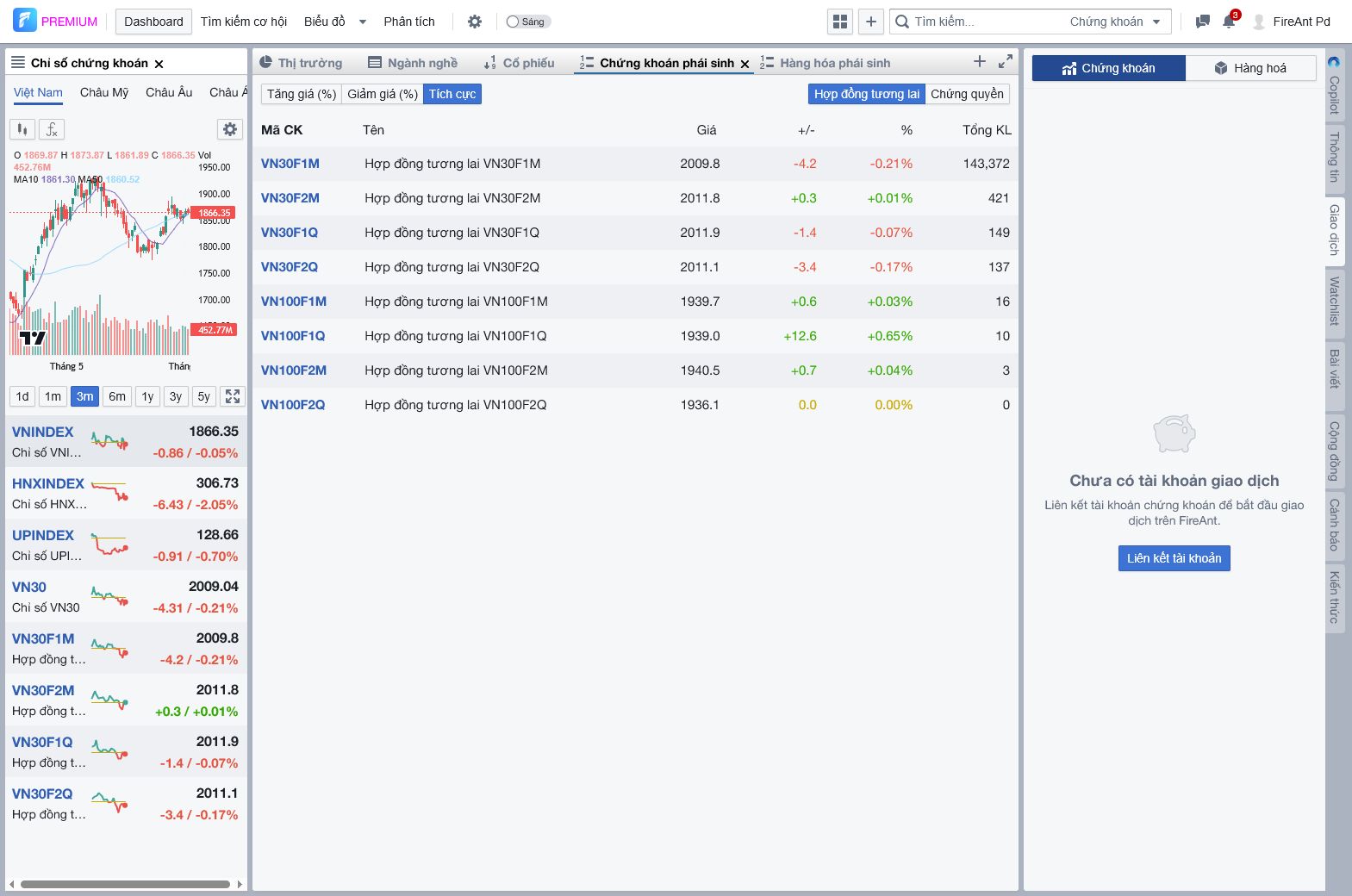
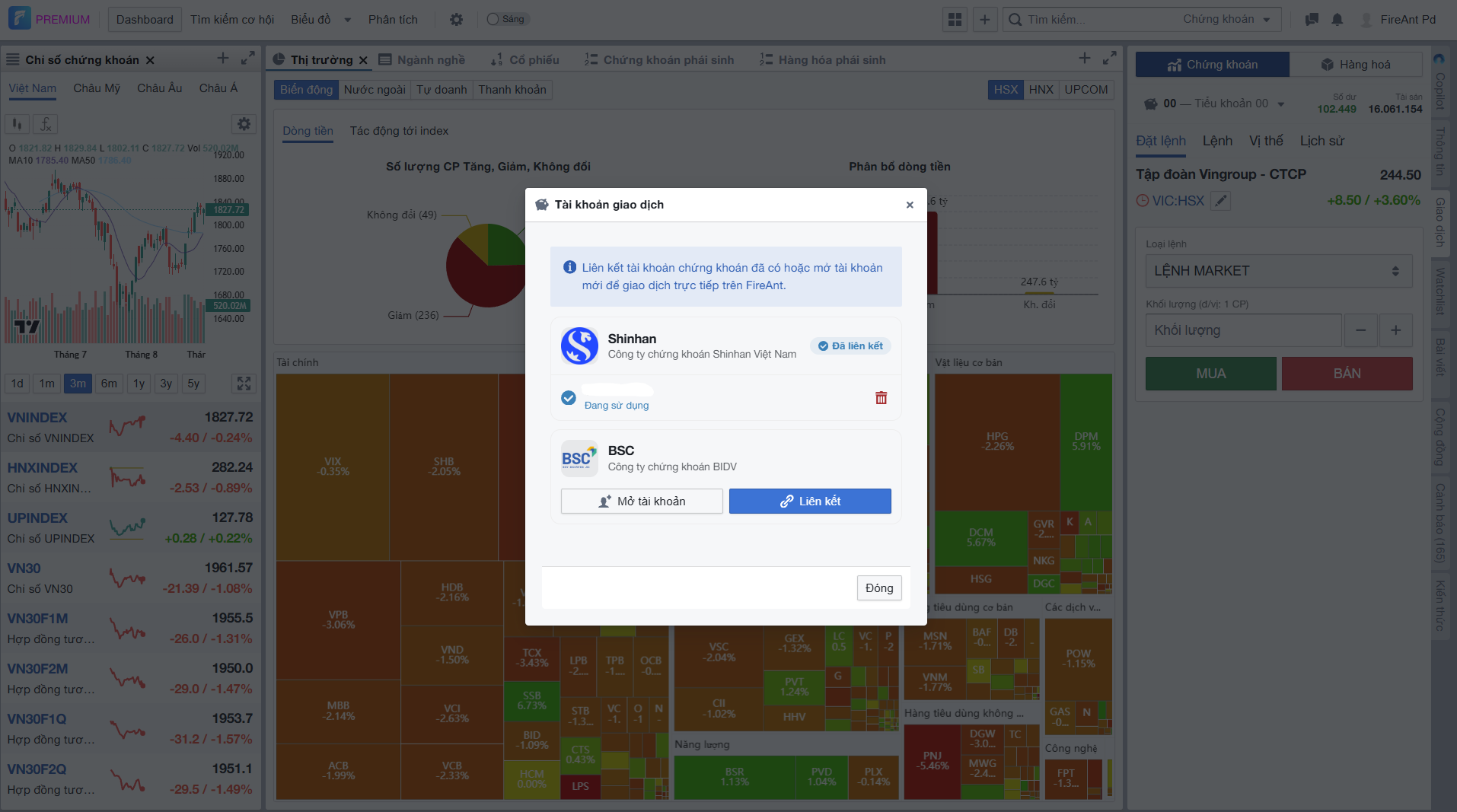
Khi bấm Liên kết tài khoản, hệ thống mở hộp thoại để bạn mở tài khoản mới hoặc liên kết tài khoản đã mở trước đó. Sau khi liên kết thành công, bạn có thể xem và quản lý tài khoản giao dịch ngay trong panel này. Nếu muốn hủy liên kết tài khoản chứng khoán, bấm vào icon thùng rác màu đỏ ở bên phải.
Quản lý giao dịch chứng khoán
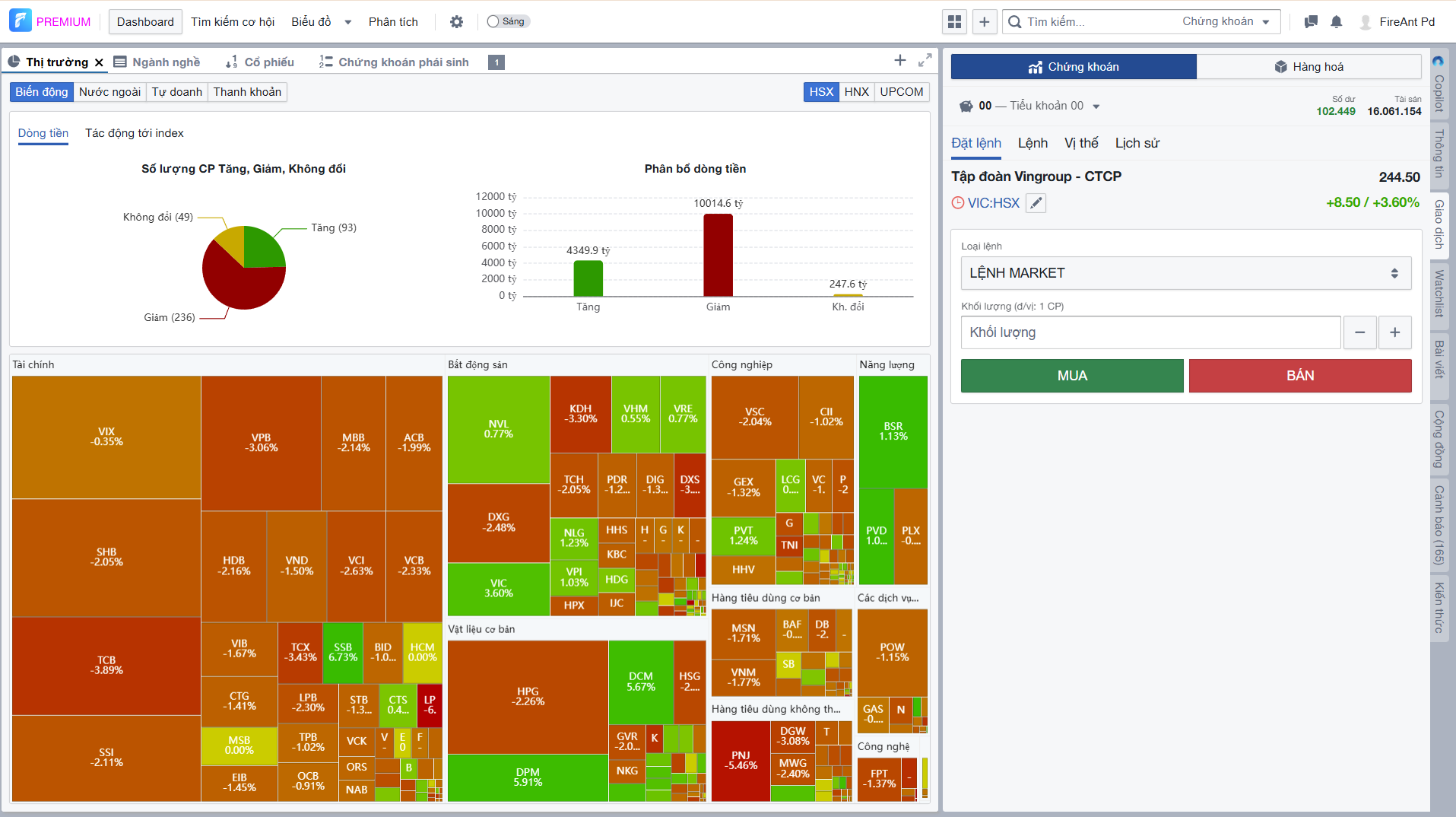
Sau khi bạn đã liên kết một tài khoản chứng khoán hợp lệ, phần panel bên phải sẽ mở ra các tab Đặt lệnh, Lệnh, Vị thế và Lịch sử. Ở tab Đặt lệnh, bạn có thể tùy chọn loại lệnh, mức giá, khối lượng và thực hiện lệnh mua bán ngay trên FireAnt Web. Các tab còn lại dùng để xem lệnh trong ngày, theo dõi vị thế và tra lại các lệnh đã đặt.
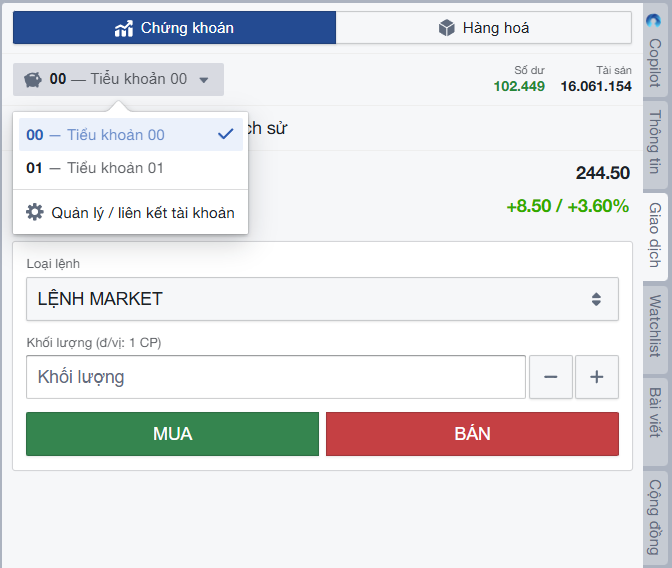
Nếu bạn cần quản lý nhiều tài khoản giao dịch đã liên kết, hãy bấm vào Tiểu khoản để mở danh sách tài khoản và chọn đúng tiểu khoản đang muốn giao dịch. Trong menu đó, bạn cũng có thể vào Quản lý / liên kết tài khoản để thêm tài khoản mới hoặc hủy liên kết tài khoản không còn dùng nữa.
Mở tài khoản Hàng hóa
Khi chuyển sang tab Hàng hoá, nếu chưa có tài khoản giao dịch hàng hóa phái sinh, panel sẽ hiển thị trạng thái Chưa có tài khoản hàng hoá cùng nút Mở tài khoản.
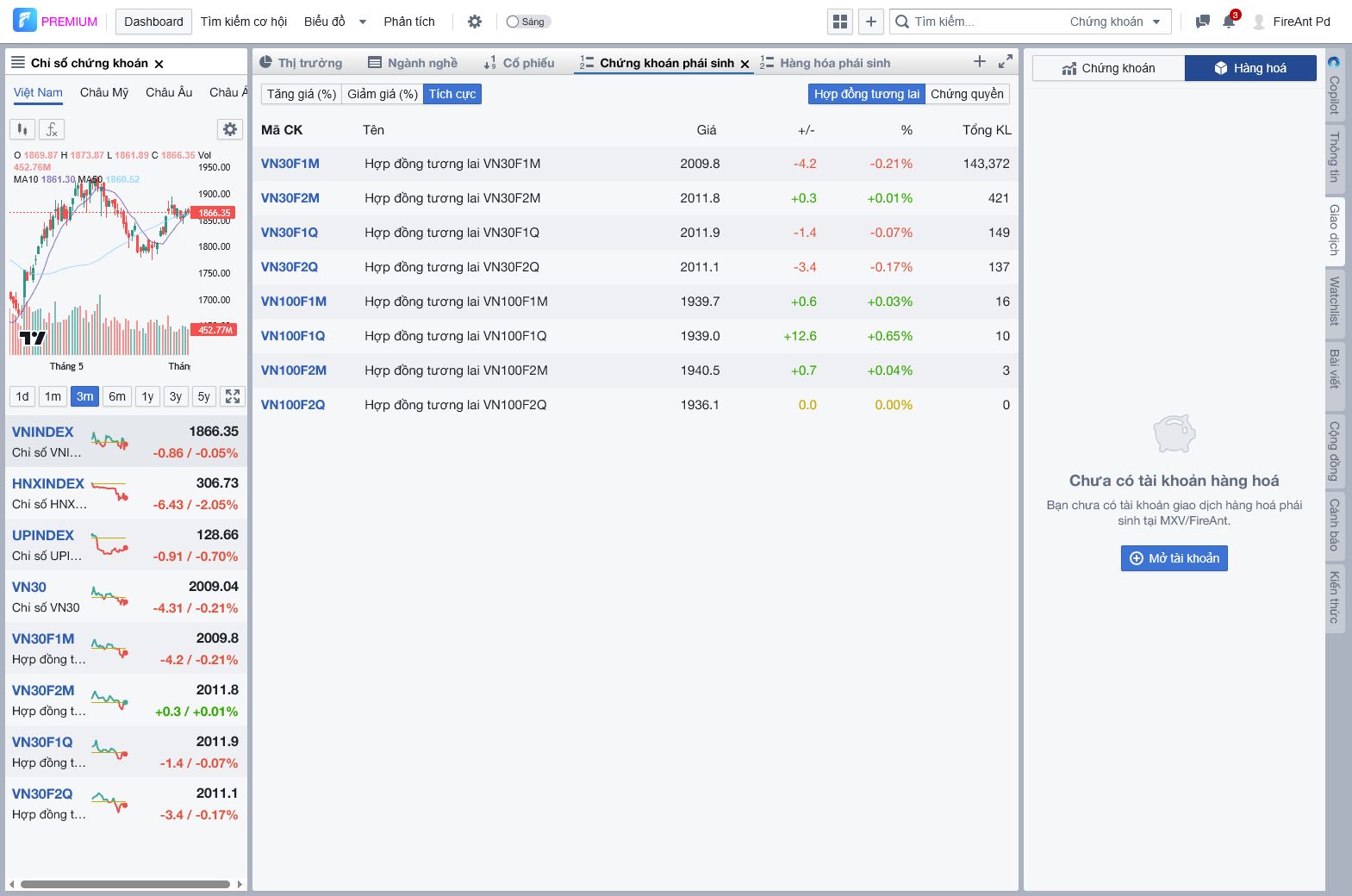
Các bước
- Bấm tab Giao dịch ở panel bên phải, sau đó chọn tab Chứng khoán.
- Liên kết tài khoản chứng khoán: bấm nút Liên kết tài khoản để bắt đầu kết nối tài khoản chứng khoán với FireAnt.
- Mở tài khoản mới hoặc liên kết lại tài khoản chứng khoán đã mở trước đó ngay trong hộp thoại liên kết.
- Sau khi liên kết thành công, xem và quản lý tài khoản giao dịch từ panel bên phải.
- Hủy liên kết tài khoản chứng khoán bằng cách bấm icon thùng rác màu đỏ ở bên phải dòng tài khoản đã liên kết.
- Chuyển sang Hàng hoá: bấm tab Hàng hoá ở đầu panel để xem luồng dành cho giao dịch hàng hóa phái sinh.
- Mở tài khoản hàng hóa: bấm Mở tài khoản để bắt đầu quy trình mở tài khoản giao dịch hàng hóa phái sinh tại MXV/FireAnt.
Overview
The Trading tab is where you link your account and enter the flow for using trading features directly within the dashboard. Here, FireAnt separates two usage directions: Stocks and Commodities.
What is it for?
- Link a stock trading account to prepare for trading needs on FireAnt.
- Open a commodity derivatives trading account when you want to use the
Commoditiessection. - Keep the trading action flow right on the side panel without leaving the dashboard.
Prerequisites
- Open FireAnt Web at fireant.vn in a browser; the
Tradingtab is in the vertical tab strip on the right edge of the screen (the right panel). - To place stock orders, you need a valid linked stock trading account (open a new one or link an existing one right in the panel).
- To trade commodity derivatives, you need a commodity derivatives trading account at MXV/FireAnt.
Link a stock trading account
While on the Stocks tab, if no trading account is linked yet, the panel displays the No trading account status along with a Link account button.
Clicking Link account opens a dialog where users can open a new account or link an account they already opened earlier. After the account is linked successfully, they can view and manage the trading account from this panel. To unlink a stock account, click the red trash icon on the right side of the linked account row.
Manage stock trading
After you link a valid stock account, the right-side panel shows the Order, Orders, Positions, and History tabs. This is where you place trades, check today’s orders, track positions, and review previous trades.
If you need to manage multiple linked trading accounts, click Subaccount to open the account list and choose the subaccount you want to use. From that menu, you can also open Manage / link accounts to add another account or unlink one you no longer use.
Open a Commodity account
When you switch to the Commodities tab, if no commodity derivatives trading account exists yet, the panel displays the No commodity account status along with an Open account button.
Steps
- Click the Trading tab in the right panel, then select the Stocks tab.
- Link a stock trading account: click the Link account button to start linking your stock trading account with FireAnt.
- Open a new account or link an account previously opened in the linking dialog.
- After linking succeeds, view and manage the trading account from the right-side panel.
- Unlink a stock account by clicking the red trash icon on the right side of the linked account row.
- Manage stock trading: once a valid stock account is linked, use the Order, Orders, Positions, and History tabs to trade and review your activity.
- Subaccount: open the subaccount list to switch to the trading account you want to use.
- Manage / link accounts: add another account or unlink one you no longer use.
- Switch to Commodities: click the Commodities tab at the top of the panel to view the flow for commodity derivatives trading.
- Open a commodity account: click Open account to start the process of opening a commodity derivatives trading account at MXV/FireAnt.
개요
거래 탭은 계좌를 연결하고 대시보드 안에서 바로 거래 기능 이용 흐름으로 들어가는 곳입니다. 여기서 FireAnt는 주식과 상품 두 가지 이용 방향을 구분합니다.
용도는 무엇인가요?
- 주식 거래 계좌를 연결하여 FireAnt에서 거래를 준비합니다.
상품영역을 이용하고 싶을 때 상품 파생 거래 계좌를 개설합니다.- 대시보드를 벗어나지 않고 화면 오른쪽에서 바로 거래 작업 흐름을 유지합니다.
사전 조건
- 브라우저에서 fireant.vn의 FireAnt Web을 엽니다.
거래탭은 화면 오른쪽 가장자리의 세로 탭 묶음(오른쪽 패널)에 있습니다. - 주식 주문을 넣으려면 유효한 주식 거래 계좌를 연결해야 합니다(패널에서 새 계좌를 개설하거나 기존 계좌를 연결).
- 상품 파생 거래를 하려면 MXV/FireAnt의 상품 파생 거래 계좌가 필요합니다.
주식 거래 계좌 연결
주식 탭에 있을 때 연결된 거래 계좌가 없으면 패널에 거래 계좌 없음 상태와 계좌 연결 버튼이 표시됩니다.
계좌 연결을 누르면 새 계좌를 개설하거나, 이전에 개설한 계좌를 다시 연결할 수 있는 창이 열립니다. 연결이 완료되면 이 패널에서 거래 계좌를 보고 관리할 수 있습니다. 주식 계좌 연결을 해제하려면 연결된 계좌 행 오른쪽의 빨간 휴지통 아이콘을 누르세요.
주식 거래 관리
유효한 주식 계좌를 연결한 뒤에는 오른쪽 패널에서 주문, 주문 내역, 보유 포지션, 이력 탭이 표시됩니다. 여기서 주문을 넣고, 오늘의 주문을 확인하고, 포지션을 추적하고, 이전 거래를 다시 확인할 수 있습니다.
여러 개의 연결된 거래 계좌를 관리해야 한다면 하위 계좌를 눌러 계좌 목록을 열고 사용할 계좌를 선택하세요. 해당 메뉴에서 계좌 관리 / 연결을 통해 계좌를 추가하거나 더 이상 사용하지 않는 계좌의 연결을 해제할 수도 있습니다.
상품 계좌 개설
상품 탭으로 전환했을 때 상품 파생 거래 계좌가 없으면 패널에 상품 계좌 없음 상태와 계좌 개설 버튼이 표시됩니다.
단계
- 오른쪽 패널에서 거래 탭을 클릭한 뒤 주식 탭을 선택합니다.
- 주식 거래 계좌 연결: 계좌 연결 버튼을 눌러 FireAnt와 주식 거래 계좌 연결을 시작합니다.
- 새 계좌를 개설하거나 이전에 열어둔 계좌를 연결 창에서 다시 연결합니다.
- 연결이 완료되면 오른쪽 패널에서 거래 계좌를 보고 관리합니다.
- 연결된 주식 계좌는 행 오른쪽의 빨간 휴지통 아이콘을 눌러 연결을 해제할 수 있습니다.
- 상품으로 전환: 패널 상단의 상품 탭을 눌러 상품 파생 거래를 위한 흐름을 확인합니다.
- 상품 계좌 개설: 계좌 개설을 눌러 MXV/FireAnt에서 상품 파생 거래 계좌 개설 절차를 시작합니다.
概述
交易标签页是用户关联账户并直接在仪表盘内进入交易功能使用流程的地方。在这里,FireAnt 将使用方向分为证券和商品两类。
用途是什么?
- 关联证券交易账户,为在 FireAnt 上进行交易做好准备。
- 当用户想使用
商品板块时,开通商品衍生品交易账户。 - 将交易操作流程保留在屏幕右侧,无需离开仪表盘。
前提条件
- 在浏览器中打开 FireAnt Web(fireant.vn);
交易标签页位于屏幕右侧边缘的竖向标签栏(右侧面板)中。 - 如需下单买卖证券,需要关联一个有效的证券交易账户(可在面板中开通新账户或关联已有账户)。
- 如需交易商品衍生品,需要在 MXV/FireAnt 开通商品衍生品交易账户。
关联证券账户
当处于证券标签页时,如果尚未关联交易账户,面板会显示暂无交易账户状态以及关联账户按钮。
点击 关联账户 后,系统会打开一个对话框,用户可以 开通新账户 或 关联之前已经开通的账户。关联成功后,用户就可以在这个面板里查看和管理交易账户。若要取消证券账户关联,请点击已关联账户行右侧的 红色垃圾桶图标。
管理证券交易
当你已经关联了一个有效的证券账户后,右侧面板会显示 下单、当日订单、持仓 和 历史 标签页。你可以在这里下单、查看当日订单、跟踪持仓并回顾之前的交易。
如果你需要管理多个已关联的交易账户,可以点击 子账户 打开账户列表并选择要使用的子账户。在该菜单中,你还可以进入 管理 / 关联账户 来新增账户,或取消不再使用的账户关联。
开通商品账户
当切换到商品标签页时,如果尚未开通商品衍生品交易账户,面板会显示暂无商品账户状态以及开通账户按钮。
步骤
- 点击右侧面板中的 交易 标签页,然后选择 证券 标签页。
- 关联证券账户:点击关联账户按钮,开始将证券交易账户与 FireAnt 关联。
- 在关联对话框中开通新账户,或重新关联之前已经开通的账户。
- 关联成功后,可从右侧面板查看和管理交易账户。
- 点击已关联账户行右侧的 红色垃圾桶图标 可取消证券账户关联。
- 切换到商品:点击面板顶部的商品标签页,查看商品衍生品交易的操作流程。
- 开通商品账户:点击开通账户,开始在 MXV/FireAnt 开通商品衍生品交易账户的流程。