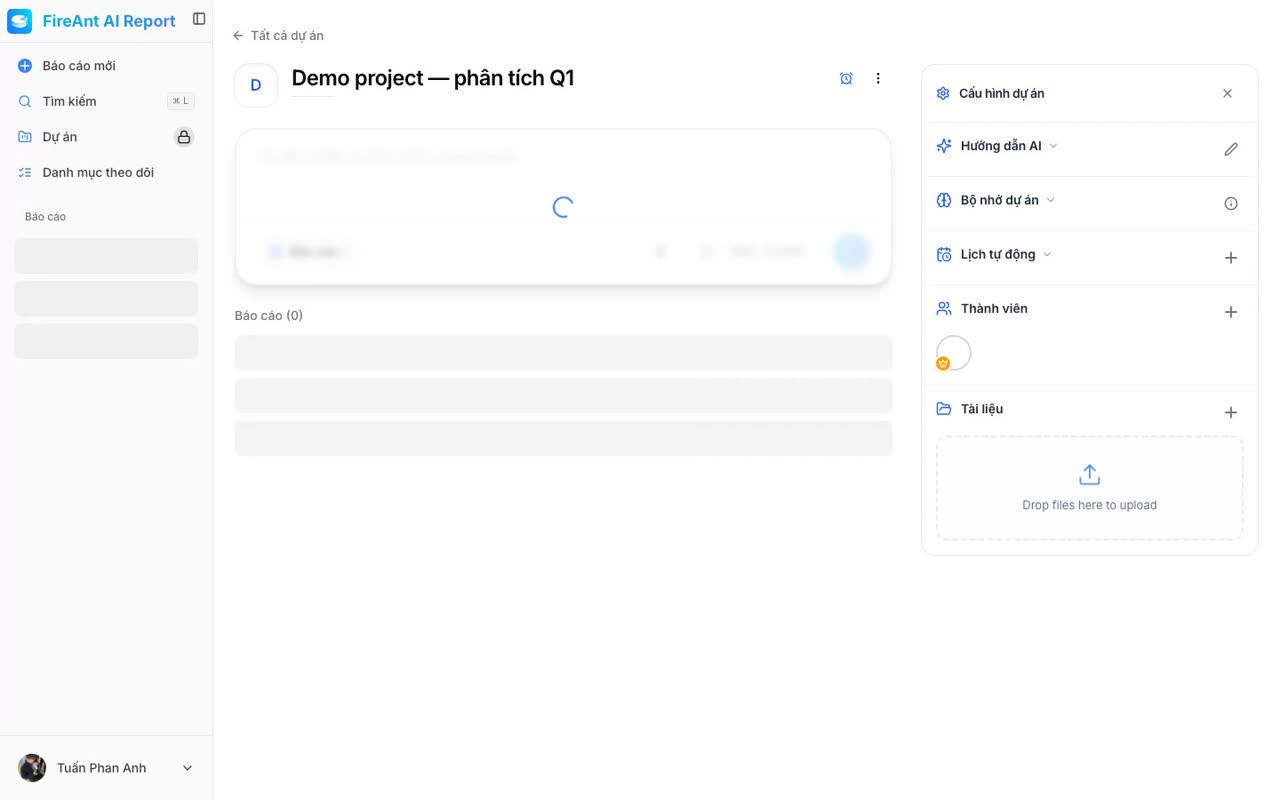
Tổng quan Tải tài liệu nội bộ (báo cáo phân tích, biên bản họp, tài liệu ngành…) lên dự án để AI có thêm ngữ cảnh riêng khi sinh báo cáo. Tài liệu được hệ thống xử lý thành các đoạn (chunk) trước khi sẵn sàng dùng.
Điều kiện
Yêu cầu tài khoản Premium.
Vai trò: Chủ sở hữu và Quản lý có thể tải lên và xoá tài liệu. Thành viên có thể xem; Khách chỉ xem.
Bối cảnh: chi tiết dự án, mục Tài liệu .
Các bước
Mở chi tiết dự án.
Mở mục Tài liệu .
Kéo thả tệp vào khu vực Kéo thả tệp hoặc nhấn để chọn , hoặc nhấn vào khu vực đó để chọn tệp từ máy.
Chờ trạng thái tài liệu chuyển từ Đang xử lý sang Sẵn sàng .
Tài liệu xuất hiện trong danh sách với cột Trạng thái = Sẵn sàng , kèm thông báo "Đã tải lên {count} tệp thành công". Từ lúc này AI có thể tham chiếu nội dung tệp khi bạn chọn nguồn Tài liệu nội bộ lúc tạo báo cáo.
Có ba trạng thái tài liệu hiển thị trong cột Trạng thái :
Đang xử lý — hệ thống đang phân tích và lập chỉ mục tệp.Sẵn sàng — tệp đã được xử lý và AI có thể sử dụng.Lỗi — tệp không xử lý được, cần tải lên lại hoặc đổi tệp.
Mỗi tệp có thông tin Kích thước , Ngày tải lên và số đoạn đã chia.
Để dùng tài liệu khi tạo báo cáo, nhớ chọn nguồn Tài liệu nội bộ trong khung chọn nguồn dữ liệu.
Thông báo Nguyên nhân Cách xử lý Định dạng tệp không được hỗ trợ: {name} Tệp không thuộc định dạng cho phép Đổi sang định dạng được hỗ trợ và tải lại Lỗi khi tải lên tệp Lỗi mạng / kích thước tệp / dịch vụ tạm thời Thử lại; nếu tệp quá lớn, chia nhỏ trước khi tải lên Trạng thái Lỗi ở dòng tài liệu Hệ thống không xử lý được nội dung tệp Xoá tệp lỗi và tải lên phiên bản khác hoặc định dạng khác Không thể tải xuống tệp Lỗi kết nối hoặc tệp không còn tồn tại Tải lại trang và thử lại Không thể tải tài liệu Lỗi mở xem trước Đóng panel xem trước, mở lại; nếu vẫn lỗi, dùng nút tải xuống
Tải tài liệu lên dự án Overview Upload internal documents (analysis reports, meeting minutes, sector papers…) to a project so the AI has extra private context when generating reports. The system processes documents into chunks before they are ready to use.
Prerequisites
Requires a Premium account.
Role: Owner and Admin can upload and delete documents. Members can view; Guests can only view.
Context: project detail page, Documents section.
Steps
Open the project detail page.
Open the Documents section.
Drag and drop a file into the Drag and drop a file or click to choose area, or click the area to pick a file from your machine.
Wait for the document status to change from Processing to Ready .
The document appears in the list with Status = Ready , accompanied by the message "Uploaded {count} file(s) successfully". From now on the AI can reference the file content when you choose the Internal Documents source while creating a report.
There are three statuses shown in the Status column:
Processing — the system is analyzing and indexing the file.Ready — the file has been processed and the AI can use it.Error — the file could not be processed; reupload or replace it.
Each file shows Size , Upload date , and the number of chunks it was split into.
To use the documents when creating a report, remember to select the Internal Documents source in the data source picker.
Message Cause Resolution Unsupported file format: {name} The file is not in an allowed format Convert to a supported format and re-upload Error uploading file Network / file size / temporary service issue Try again; if the file is too large, split it before uploading Error status on the document rowThe system could not process the file content Delete the failed file and upload a different version or format Cannot download the file Connection error or the file no longer exists Reload the page and try again Cannot load the document Preview opening error Close the preview panel and reopen; if it persists, use the download button
Upload a document to a project 분석 보고서, 회의록, 업종 자료 등의 내부 문서를 프로젝트에 업로드하면 보고서 생성 시 AI가 추가적인 비공개 컨텍스트로 사용할 수 있습니다. 시스템은 사용 가능한 상태가 되기 전에 문서를 청크(chunk) 단위로 처리합니다.
사전 조건
Premium 계정이 필요합니다.
역할: 소유자 와 관리자 는 문서를 업로드하고 삭제할 수 있습니다. 멤버는 볼 수 있고, 게스트도 볼 수만 있습니다.
위치: 프로젝트 상세 페이지의 문서 섹션.
프로젝트 상세 페이지를 엽니다.
문서 섹션을 엽니다.파일을 끌어다 놓거나 클릭하여 선택 영역에 파일을 드래그 앤 드롭하거나 영역을 클릭해 기기에서 파일을 선택합니다.문서 상태가 처리 중 에서 준비 완료 로 바뀔 때까지 기다립니다.
문서가 상태 = 준비 완료 로 목록에 표시되며 "{count}개 파일이 성공적으로 업로드되었습니다"라는 메시지가 함께 나타납니다. 이제 보고서를 만들 때 내부 문서 소스를 선택하면 AI가 파일 내용을 참조할 수 있습니다.
상태 열에는 세 가지 상태가 표시됩니다:
처리 중 — 시스템이 파일을 분석하고 색인 중.준비 완료 — 파일이 처리되어 AI가 사용할 수 있음.오류 — 파일을 처리할 수 없음. 다시 업로드하거나 교체 필요.
각 파일에는 크기 , 업로드 날짜 , 분할된 청크 수가 표시됩니다.
보고서를 만들 때 문서를 사용하려면 데이터 소스 선택기에서 내부 문서 소스를 반드시 선택하세요.
메시지 원인 해결 방법 지원되지 않는 파일 형식: {name} 허용된 형식이 아닌 파일 지원되는 형식으로 변환하여 다시 업로드 파일 업로드 오류 네트워크 / 파일 크기 / 일시적인 서비스 문제 다시 시도; 파일이 너무 크면 분할 후 업로드 문서 행에 오류 상태 표시 시스템이 파일 내용을 처리할 수 없음 실패한 파일 삭제 후 다른 버전 또는 형식 업로드 파일을 다운로드할 수 없습니다 연결 오류이거나 파일이 더 이상 존재하지 않음 페이지를 새로 고침한 후 다시 시도 문서를 불러올 수 없습니다 미리 보기 열기 오류 미리 보기 패널을 닫았다가 다시 열기; 계속되면 다운로드 버튼 사용
프로젝트에 문서 업로드 把内部文档(分析报告、会议纪要、行业资料等)上传到项目,让 AI 在生成报告时获得额外的私有上下文。系统会先把文档处理成多个分块(chunk),然后才可用。
前提条件
需要 Premium 账号。
角色:所有者 和 管理员 可以上传和删除文档。成员可以查看;访客只能查看。
位置:项目详情页的 文档 区域。
打开项目详情页。
打开 文档 区域。
把文件拖放到 拖放文件或点击选择 区域,或点击该区域从本机选择文件。
等待文档状态从 处理中 变为 准备就绪 。
文档会显示在列表中,状态 = 准备就绪 ,同时会出现"已成功上传 {count} 个文件"提示。此后在创建报告时选择 内部文档 数据源,AI 即可引用文件内容。
状态 列有三种状态:
处理中 — 系统正在分析并索引文件。准备就绪 — 文件已处理,AI 可以使用。错误 — 文件无法处理,需要重新上传或更换。
每个文件显示 大小 、上传日期 以及被拆分的 分块 数。
在创建报告时使用文档,请记得在数据源选择器中勾选 内部文档 数据源。
消息 原因 解决方法 不支持的文件格式:{name} 文件不在允许的格式中 转换为支持的格式后重新上传 上传文件时出错 网络 / 文件大小 / 服务临时故障 重试;文件过大时先拆分后再上传 文档行显示 错误 状态 系统无法处理文件内容 删除失败文件并上传其他版本或格式 无法下载文件 连接错误或文件已不存在 刷新页面后重试 无法加载文档 打开预览时出错 关闭预览面板再打开;若仍失败,改用下载按钮
上传文档到项目